Hey there, it’s Jake, and I’ve spent the last 7 years selling VESA mounts for monitors — so let me cut through the confusion straight up: yes, almost every time you can use a VESA mount to put your monitor on your desk. But before you drill a hole in your desktop or grab a bracket off a shelf, there are a few little details that’ll make or break this project, and I’ve seen way too many customers skip them and end up frustrated. VESA Mount Monitor
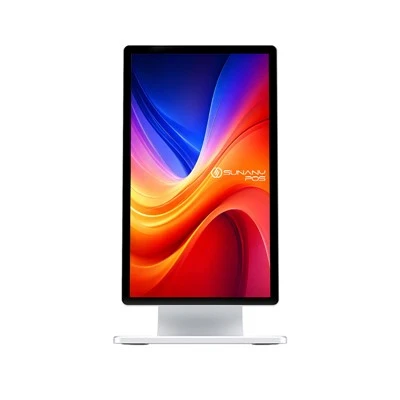
When I first started in this business, I thought VESA was just a random set of letters someone pulled out of thin air. Turns out, it stands for Video Electronics Standards Association, that group of tech folks who got together in the 90s to make monitor mounting consistent across brands. That standard is the core of why a VESA mount works for desk setups: all monitors made since the early 2000s are required to have VESA-compliant mounting holes on the back, right? Except for some super old CRT monitors, tiny portable screens, and a handful of gaming laptops with built-in displays — even some budget brand monitors I’ve tested check out.
Let’s break down the key specs, because this is where a lot of people mess up. VESA uses two numbers to tell you the hole pattern on the back of your monitor: it’s the distance between the four mounting holes, measured in millimeters. The most common ones are 75x75mm (for small monitors 15 to 24 inches) and 100x100mm (for 24 to 32 inch monitors). If you’re working with a bigger monitor — 34 inches or more, like ultrawide gaming screens or pro design monitors — you might see 200x100mm or 200x200mm. The easiest way to check? Turn your monitor around, hold a ruler to the four screw holes — if they’re evenly spaced in a square or rectangle, those numbers are what you’ll need. No VESA holes? Double-check the manual, some monitors have a removable plastic cover on the back that hides them. If you still don’t see them, you might not be able to use a standard VESA mount, but that’s rare.
Now, when you want to mount a monitor on a desk, you have two main options with VESA: desk clamp mounts and grommet base mounts. Let me explain both because they’re not the same, and each works best for different setups.
Desk clamp mounts are the most popular for home office and gaming setups. These clamp onto the edge of your desk, no drilling required — that’s a huge win if you’re in a rental and can’t make holes. The key here is your desk’s thickness: most clamp mounts work on desks between 1.5 inches and 3 inches thick, but some heavy-duty ones can go up to 5 inches. If your desk is thinner than 1.5 inches, like a thin laminate IKEA table top, or thicker than that, you’ll need a specific clamp mount with adjustable jaws. I’ve had customers come back saying their mount won’t clamp because they bought a cheap one that only fits 2-inch desks — that’s why testing your desk thickness before buying is non-negotiable.
Then there are grommet base mounts, which work if you already have a hole in your desk (like for a cable management grommet). You remove the old grommet, slide the VESA mount’s base through the hole, and secure it from below with bolts. This is way sturdier than a clamp mount — perfect for big, heavy monitors like 32-inch 4K screens or dual monitor setups. But if you don’t have a hole in your desk, drilling one is an option, but only if your desk is solid wood or MDF; if it’s glass or metal, drilling might crack or scratch it, so a clamp mount is safer.
Wait, what about monitor weight? That’s another big one. Every VESA mount has a weight limit, and I can’t stress enough: do not go over it. I once had a college kid come in with a 27-inch gaming monitor (which weighs 18 pounds) and try to use a mount rated for 10 pounds. A week later, he was back, embarrassed, saying his monitor had crashed onto his keyboard — no damage, but it could have been way worse. Most standard desk VESA mounts hold up to 20 pounds, but if you have a 35+ pound monitor (like a 49-inch ultrawide), you need a heavy-duty mount rated for that weight. Always check the weight of your monitor first, then pick a mount rated for at least that — some people even add 5 extra pounds just to be safe, because taller arms with extension add a little strain.
Now, here’s a common question I get: can I use a VESA mount adapter for my non-VESA monitor? If your monitor doesn’t have VESA holes, but you really want to mount it, yes — there are adapter plates that screw into your monitor’s existing stand holes (or other mounting points) and convert it to VESA. But I always warn customers: check if the adapter’s weight rating matches your monitor, and make sure the holes on the adapter line up properly. I’ve seen adapters work for a 22-inch monitor, but not for a 32-inch one — so don’t cut corners here.
Let’s talk about the benefits of mounting your monitor on a desk with a VESA mount, because a lot of people don’t realize how big a difference it makes. First, ergonomics: you can adjust the height, tilt, swivel, and even pivot your monitor so the center of the screen is at eye level. That cuts down on neck and back pain, especially if you work 8 hours a day. I’ve had office managers buy our mounts for their entire teams, and most say employee complaints about neck pain dropped by 70% within a month. Then there’s desk space — no more bulky monitor stand taking up half your desk. You can fit a keyboard, mouse, notebook, and even a small plant on the desk instead. And cable management: most VESA mounts have built-in channels to hide your power and HDMI cables behind the arm, so your desk doesn’t look like a mess of wires.
But it’s not all perfect, right? There are a few downsides to keep in mind. If you rent your apartment, a clamp mount is fine, but a grommet mount requires drilling — you’ll have to patch that hole when you move. Some cheap VESA mounts are flimsy; I’ve had customers buy $10 mounts from big box stores that wobble even when their monitor is only 15 pounds. That’s why I always recommend going for a mount with metal arms, not plastic — it’s worth the extra $20 to avoid a wobbly monitor. Also, if you have a very small desk (under 24 inches wide), make sure your mount’s arm doesn’t stick out too far when fully extended, otherwise it will get in the way of your keyboard.
Wait, another thing: dual monitor setups. Can you use two VESA mounts on one desk? Absolutely — there are dual VESA arms that hold two monitors, side by side or stacked. Just make sure the VESA pattern and weight rating for both monitors matches the dual arm’s specs. I’ve set up dual 27-inch monitors for graphic designers, and they love how they can edit a design on one and reference assets on the other, without squinting.
Let me walk you through a quick, real-world example. Last month, a graphic designer named Mia came into our store. She had a 32-inch 4K monitor, a desk with a 2-inch thickness, and wanted to stop hunching over her screen. We checked her monitor’s VESA holes (100x100mm), her desk thickness, and the weight of her monitor (15 pounds). We sold her a clamp mount rated for 20 pounds, with tilt and swivel. She installed it in 10 minutes, and a week later she sent me a photo of her setup — no more neck pain, and she had extra space for her drawing tablet. That’s the kind of win I love seeing.
Now, what about common mistakes people make? Number one: buying a mount without checking the VESA pattern or weight. Number two: choosing a mount that’s too short — if you’re 6’2” like me, a standard 12-inch arm won’t lift your monitor high enough, so you need a 16-inch arm. Number three: not tightening the screws enough. I always tell customers to use a screwdriver (not a power drill, which can strip the holes) to secure the monitor to the mount — loose screws are why monitors fall. Number four: ignoring desk material. If you have a glass desk, a clamp mount might scratch the glass, so you need a glass-specific clamp mount with rubber padding to prevent that.
So to circle back: yes, you absolutely can use a VESA mount to mount your monitor on a desk, as long as you do the 3 quick checks first: confirm your monitor has a compatible VESA pattern, measure your desk’s thickness, and check the mount’s weight rating matches your monitor. It’s a simple upgrade that saves space, improves ergonomics, and makes your desk look way cleaner.
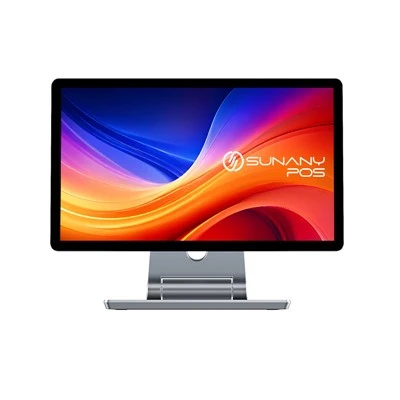
If you’re ready to pick the right VESA mount for your setup, we have a range of clamp and grommet mounts, from budget-friendly options for home use to heavy-duty ones for pro monitors and dual setups. Our team has over 7 years of experience helping people pick the right mount, so we can answer any questions you have — whether you’re not sure what VESA pattern your monitor uses, or you’re worried about your glass desk working with a clamp. If you’re looking to purchase in bulk for an office, or just need help picking the right mount for your home setup, reach out to us to discuss your needs. We’re here to make sure you get a mount that works for you, no hassle.
POS System References
VESA. (2024). VESA Mounting Standards Overview. Video Electronics Standards Association.
Ergonomics Society. (2023). Effects of Monitor Position on Musculoskeletal Discomfort. The Chartered Institute of Ergonomics and Human Factors.
Consumer Reports. (2022). How to Choose a Monitor Mount for Your Desk. Consumer Reports National Research Center.
Shenzhen Sunany Technology Limited
Shenzhen Sunany Technology Limited is one of the most professional vesa mount monitor manufacturers and suppliers in China, featured by quality products and good price. Welcome to wholesale bulk advanced vesa mount monitor made in China here and get pricelist from our factory. Contact us for customized service and OEM service.
Address: 7F, Building 2, Pingji Avenue No.13, Longgang, Shenzhen, China.
E-mail: info@sunany.com
WebSite: https://www.sunanypos.com/
